
Authentication
Generate an API key and authenticate every request to the PeopleForce APIs.
PeopleForce authenticates API requests with an API key. There are two types of key depending on your use case — choose the one that matches your goal.
| Key type | Access | Where it can be used |
|---|---|---|
| Company API key | Full access to the PeopleForce API and people data, with minimal restrictions. | Server-to-server integrations only. Never on a public-facing website. |
| Career API key | Limited to non-sensitive, vacancy-specific data. | Safe to use on a public-facing website (e.g. a custom careers page). |
To create a key, go to Settings → API keys (at the bottom of the page) → Generate API key.
Company API key
A Company API key lets the holder retrieve or change data in your company account through the API. Use it to build any system integration to PeopleForce.
A Company API key grants access to nearly all data in PeopleForce. Only use it in trusted server-to-server integrations, never on a public-facing website, and only share it with developers you trust.
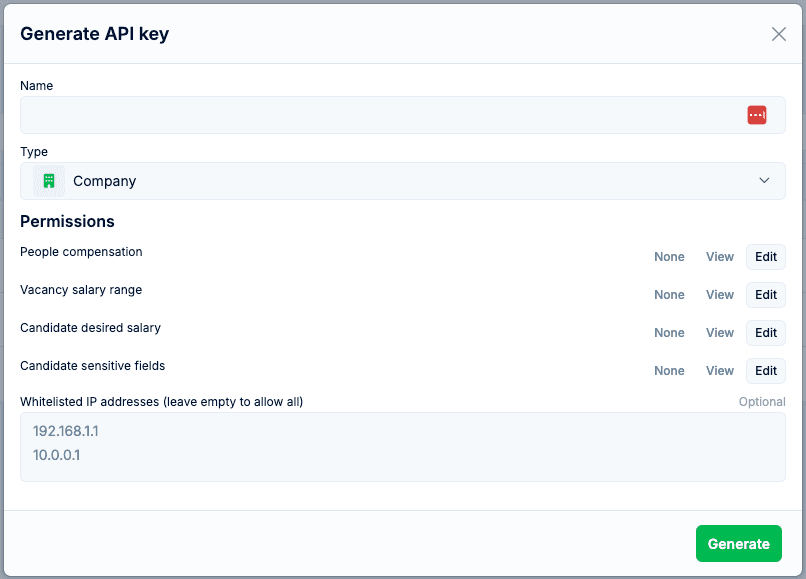
You can scope a Company key with these restrictions:
- People compensation — limit viewing or editing of people compensation.
- Vacancy salary range — limit viewing or editing of vacancy salary ranges.
- Candidate desired salary — limit viewing or editing of candidate desired salary.
- Candidate sensitive fields — limit viewing or editing of candidate sensitive fields.
- IP addresses — restrict callers to an allow-list of IP addresses (e.g. office or home networks).
Career API key
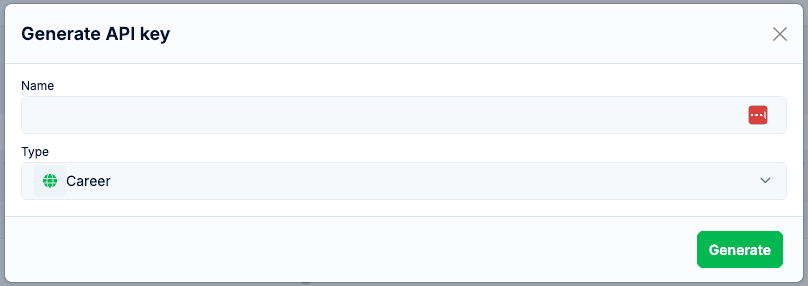
A Career API key lets you retrieve vacancies from PeopleForce to build a custom careers page on your own website. Because it is limited to non-sensitive, vacancy-specific information, it is safe to embed in a public-facing site. See Own career site integration for how to use it.
Using a key
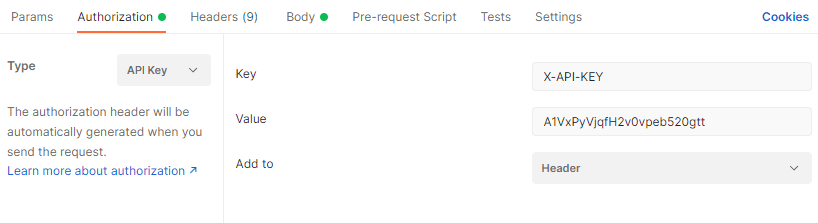
Pass the key in a request header named X-API-KEY:
curl https://app.peopleforce.io/api/v4/people \
  -H "X-API-KEY: <your_api_key>"
All API requests must be made over HTTPS — calls over plain HTTP will fail, and so will requests without authentication.
Disabling a key
From the API key list page you can disable a key to temporarily stop it from working without deleting it — useful while pausing an integration.

Revoking a key
If you no longer need a key, delete it from Settings → API keys → find the key → Delete.
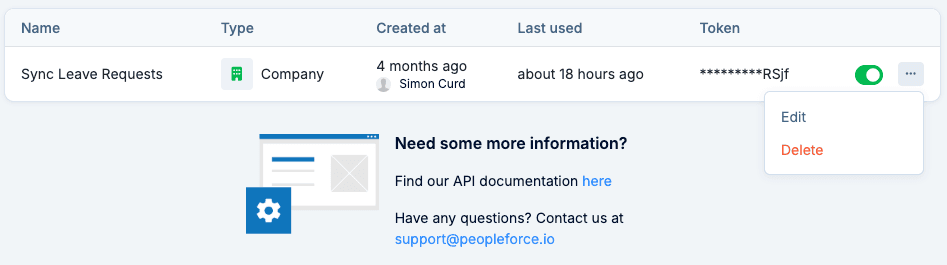
Deleting an API key is permanent and immediate. Any integration using that key stops working at once, and the key cannot be recreated. Account for every integration before deleting.
Troubleshooting
401 Unauthorized
Double-check that the API key was copied correctly and try again.
{
  "message": "Bad Credentials"
}
403 Forbidden
Your role doesn't have permission for this action — most often because the key is restricted from compensation data.
404 Not Found
The resource could not be found. Check that your request refers to an existing object.
422 Unprocessable Entity
One or more fields failed validation. The response body lists every error:
{
  "success": false,
  "errors": [
    "Field name can't be blank"
  ]
}
500 Internal Server Error
A problem on our side. Try again later, or contact support.